
You open NVivo for the first time, and you don’t know where to start. You have a folder of interview files, and you know you’re supposed to “code” them, but nobody has really explained what that means or how to do it. So you start clicking around, and pretty soon you have a messy pile of tags with no clear structure, and you’re not sure any of it is actually useful. This is where most students get stuck with NVivo, not because the research itself is hard, but because the software doesn’t explain itself. This guide fixes that. It covers the exact problems students run into with NVivo, a clear fix for each one, and how coding, nodes, and queries work so you can run your project without guessing.
What Is NVivo, Exactly?
NVivo is qualitative data analysis (QDA) software from Lumivero used to code, organize, and query unstructured data: interview transcripts, focus group recordings, open-ended survey responses, PDFs, images, and social media extracts. Instead of manually tagging printed transcripts with highlighters, you tag digital text with labeled codes called nodes, then use built-in queries to search, cross-reference, and compare those codes across your whole dataset.
It’s built for qualitative and mixed-methods work specifically, which puts it in a different category from a quantitative package like SPSS software, which runs statistical tests on numerical data rather than organizing themes from interview text. If your data is words, recordings, or images rather than a spreadsheet of numbers, NVivo is the right category of tool.
Real Problems Students Run Into, and How to Actually Fix Them
Most NVivo frustration isn’t about not understanding qualitative research. It’s a handful of specific technical snags that nobody explains clearly. Here’s what actually goes wrong and what to do about it.
Problem 1: Your PDF or Scanned Transcript Won’t Import Cleanly
Scanned transcripts, image-based PDFs, and password-protected files often fail to import correctly, or import as unreadable, uncodeable blocks of text. NVivo can only code text it can actually read, so a scanned PDF without an OCR (optical character recognition) layer will import as an image you can annotate but not code word-by-word.
Fix: Run scanned documents through OCR before importing, either using Adobe Acrobat’s “Recognize Text” feature or a free tool like Google Drive’s built-in OCR (upload the PDF, open it with Google Docs, and it will extract the text). Remove password protection before import as well, since NVivo will reject or partially import a locked file.
Problem 2: Your Matrix Coding Query Returns Blank Results
This is one of the most common points of panic. You set up a matrix query comparing a theme against a demographic variable, run it, and get an empty table or all zeros, even though you know you coded the relevant passages.
Fix: Matrix queries cross-reference nodes against case classifications, and this only works if your cases have been created and their attribute values filled in first. Go to your Cases folder, confirm each case exists (one per participant or site), then check Classifications to make sure attributes like “gender” or “location” actually have values assigned, not just an empty field. A matrix query pulling from cases with no attribute data will always return blank, regardless of how much coding you’ve done.
Problem 3: Your Node Structure Has Become an Unmanageable Mess
After a few weeks of coding, it’s common to end up with thirty or forty overlapping nodes, several near-duplicates, and no clear sense of which one to use for a new passage.
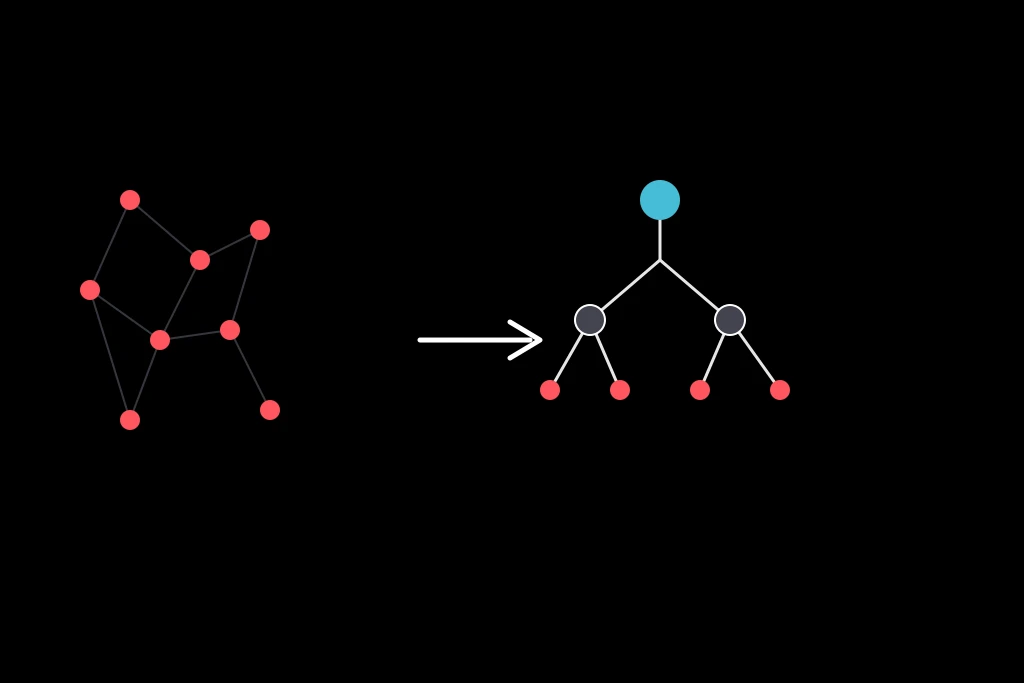
Fix: Use NVivo’s node merge function rather than starting over. Select two similar nodes in the Nodes list, right-click, and choose “Merge Selected Nodes” to combine them without losing any coded references. Then restructure your surviving nodes into a hierarchy: pick four or five broad parent nodes tied directly to your research questions, and drag related narrower nodes underneath them as child nodes. A flat list of forty nodes is nearly impossible to code consistently against; a hierarchy of five parents with focused children usually is.
Problem 4: You’re Coding Inconsistently, Especially on a Team Project
If you’re coding with a research partner, or even coding the same project across a few different sessions weeks apart, it’s easy for your coding decisions to drift. The same type of passage might get coded differently depending on when you did it.
Fix: Run a Coding Comparison Query (found under Explore in most versions), which calculates a Kappa coefficient measuring agreement between two coders, or between your own coding at two different points, on the same node. A Kappa below roughly 0.4 signals real inconsistency worth resolving before you code further; discuss and clarify the node’s definition with a short memo attached to it so the definition doesn’t drift again.
Problem 5: Your Project File Has Become Slow or Won’t Open
Large projects with many imported audio or video files, especially ones embedded rather than linked, can balloon in file size and start lagging or crashing.
Fix: Use File > Info (or the project’s compact and repair option, depending on your version) to reduce the file size and fix minor corruption. Where possible, link to external audio and video files instead of embedding them directly in the project, which keeps the project file itself much smaller. If a project won’t open at all, check whether you have a recent auto-saved backup, which NVivo creates periodically, before assuming the work is lost.
Problem 6: Transcribing Interviews Is Eating Your Entire Timeline
Manually transcribing even a handful of hour-long interviews can take ten or more hours of work before you’ve coded a single line.
Fix: NVivo Transcription (a separate paid add-on from Lumivero) auto-transcribes audio and video directly into a format ready for coding. If that’s not available through your license, third-party auto-transcription tools followed by a manual cleanup pass are a common workaround, just budget time to correct auto-transcription errors before you start coding, since bad transcription accuracy compounds into bad coding accuracy.
Problem 7: Word Frequency Queries Return Useless, Cluttered Results
Running a word frequency query for the first time often produces a list dominated by words like “the,” “and,” and “think” rather than anything analytically useful.
Fix: Adjust the query settings before running it: increase the minimum word length to exclude short filler words, and check that NVivo’s built-in stop words list (common words automatically excluded) is applied. You can also group words with the same stem (like “code,” “coding,” and “coded”) using the “with stemmed words” option, which consolidates variants into a cleaner result.
Setting Up NVivo: Licensing and Installation
Lumivero offers a 14-day free trial, enough to explore the interface but not enough to complete a full project. After that, most students get access one of two ways: a discounted student subscription purchased directly from Lumivero, or a license through their university’s IT or library department, which is often free or significantly cheaper. Ohio State University’s library guide notes that a direct-from-Lumivero student subscription typically runs under 150 dollars for 12 months, though university-negotiated rates vary by institution (Ohio State University Libraries, NVivo Access Guide). Check your university’s page before purchasing anything directly.
NVivo runs on both Windows and Mac, and the two versions aren’t always feature-identical. Before installing, confirm your machine meets the current minimum specs: NVivo generally needs a multi-core processor, at least 4 GB of RAM (8 GB or more recommended for larger projects with audio and video), and several gigabytes of free disk space. An underpowered or older machine will make large projects noticeably slow, particularly once you’re running queries against dozens of coded sources.
Understanding the Project Structure: Sources, Nodes, Cases, Classifications
Every NVivo project is organized around a few core components, and knowing the terminology makes the interface far less confusing.
Sources are your raw data: internals (files you’ve imported directly, like transcripts) and externals (references to material you haven’t imported, like a book you’re citing but not coding). Nodes hold your coding, organized as parent and child themes. Cases represent individual participants, sites, or units you want to compare. Classifications are the attribute sheets attached to cases or sources, like age, gender, or location, that make matrix queries and cross-comparisons possible.
| Component | What It Represents | Example |
| Source | Raw imported data | An interview transcript file |
| Node | A theme or concept | “Barriers to Care” (parent), “Cost” (child) |
| Case | A participant, site, or unit | “Participant 7,” “Clinic A” |
| Classification | Attributes attached to a case | Gender, age group, location |
Set up your case classifications before you start heavy coding, not after. Retroactively tagging fifty already-coded sources with attribute data is a much slower process than entering it up front.
How Coding Actually Works
To code a passage, highlight the relevant text in a source, then either drag it onto an existing node in the Nodes pane or right-click and select “Code Selection” to assign it to a node, creating a new one on the fly if needed. Every time you do this, NVivo builds a searchable reference linking that exact passage to that node, which is what makes later queries possible.
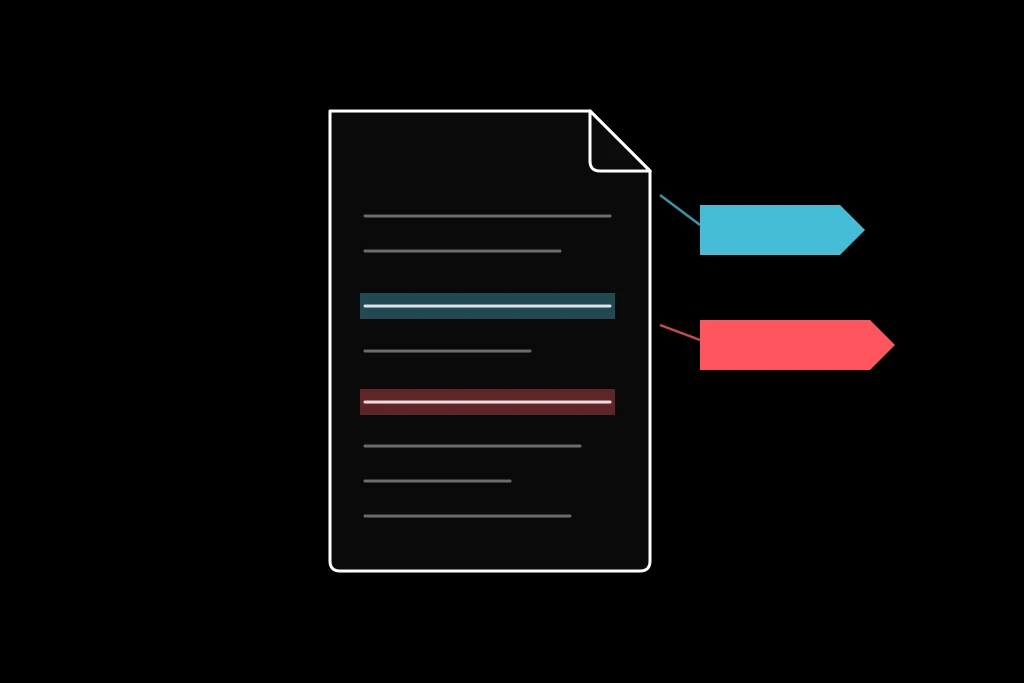
A quick, hypothetical example: in a transcript about student stress, a participant says, “I stayed up until 3am before my exam because I couldn’t stop worrying.” You might code this under both “sleep disruption” and “exam anxiety,” since it speaks to two separate themes. Once enough transcripts are coded this way, pulling every passage tagged “exam anxiety” across your entire dataset takes seconds instead of hours of manual re-reading.
Avoid coding entire paragraphs under a single vague node just to get through the transcript faster. Coding a huge, unfocused block makes later queries far less precise, since NVivo has no way to tell which specific sentence within that block actually relates to the theme.
Running Queries: Text Search, Word Frequency, and Matrix Coding
Once you have coded data, NVivo’s query tools let you interrogate it directly instead of scrolling through sources manually.
Text Search Query finds every instance of a specific word or phrase across your sources, with options to include stemmed words, synonyms, or specializations, useful for catching variations you might not think to search individually. Word Frequency Query surfaces your most common terms, adjustable by minimum word length and stop words, as covered above. Matrix Coding Query cross-references a set of nodes against a set of case attributes, producing a grid that shows, for example, how often “barriers to care” was coded among participants in one location versus another, which is often the single most useful query for a results chapter built around group comparisons.
If your project also involves quantitative components run separately, tools like stata software handle the statistical testing side, while NVivo’s queries stay focused on the qualitative cross-referencing.
Visualizing Your Coded Data
NVivo’s chart, word cloud, and model tools can help present coded data in a results or discussion chapter, but they work best as a supporting figure rather than a standalone explanation. A word cloud can flag your most frequently coded terms at a glance, but it can’t explain why a theme matters, so most students pair a visualization with written analysis rather than relying on it alone. If your program also involves discrete-event or process simulation, tools like witness simulation or systems-modeling platforms like vensim ple serve an entirely different purpose from NVivo’s qualitative charts, so it’s worth confirming exactly which software your assignment actually requires before building the wrong kind of visualization.
A Quick NVivo Setup and Coding Checklist
- License or trial is active and correctly installed for your operating system
- Source files are OCR-processed and unlocked before import
- Case classifications are created and populated before heavy coding begins
- Node structure starts with a handful of broad parent nodes, not dozens of flat ones
- Coding is checked periodically with a Coding Comparison Query if working with a partner
- Project file is backed up regularly, with large media files linked rather than embedded
How Skyline Academic and EssaysHelper Can Support You
If you’re stuck on a specific technical snag, whether that’s a matrix query returning blank results or a project file that won’t open, working through it live with someone who knows the software tends to resolve it far faster than piecing together scattered forum posts. Skyline Academic offers 1:1 personalized tutoring built around your actual project file, not a generic walkthrough, including dedicated statistical software tutoring if your project pairs NVivo with a quantitative tool.
For broader support with the capstone project itself, structuring a methodology chapter, refining a research question, or getting feedback on how findings are written up, EssaysHelper is a reliable, expert resource supporting students across disciplines with capstone and thesis work.
Frequently Asked Questions About NVivo Software
Why does my NVivo matrix query keep returning blank results?
This almost always means your case classifications haven’t been set up or populated with attribute values before running the query. Go into your Cases folder and confirm each participant or site has both a case created and its relevant attributes filled in, then re-run the query.
How do I fix a scanned PDF that won’t code properly in NVivo?
Run the file through OCR before importing, using Adobe Acrobat’s text recognition feature or a free tool like Google Docs’ built-in OCR. NVivo can only code text it can actually read, so an image-based scan needs a text layer added first.
What’s the fastest way to clean up a messy node structure?
Use the merge function to combine near-duplicate nodes without losing coded references, then reorganize your remaining nodes into a hierarchy with a handful of broad parent nodes and more specific child nodes underneath them. Trying to manage thirty flat, uncategorized nodes is almost always harder than restructuring early.
How do I check if my coding is consistent across a team project?
Run a Coding Comparison Query, which calculates a Kappa coefficient measuring agreement between coders on the same node. A low Kappa signals it’s worth clarifying that node’s definition with the team before continuing.
Why is my NVivo project file so slow or crashing?
Large embedded audio or video files are usually the culprit. Link to external media files instead of embedding them directly, and use the compact and repair option periodically to reduce file size and fix minor corruption.
Is NVivo free for students?
Not entirely, but it’s rarely full price either. Lumivero offers a 14-day free trial, and many universities provide free or discounted licenses through their library or IT department, so check your school’s resources before purchasing a subscription directly.
Can NVivo transcribe my interview recordings automatically?
Yes, through NVivo Transcription, a separate add-on from Lumivero. If that’s not included in your license, third-party auto-transcription tools followed by a manual accuracy check are a common workaround before importing into NVivo.
Why is my word frequency query full of useless filler words?
Increase the minimum word length setting and confirm NVivo’s stop words list is applied, which filters out common words like “the” and “and.” Using the “with stemmed words” option also helps by grouping variants of the same word together.
Can NVivo analyze quantitative survey data too?
NVivo can import some structured survey data and cross-reference it with qualitative codes, but it isn’t built for statistical testing like regression or significance testing. Most mixed-methods researchers use NVivo for the qualitative side and a dedicated statistical package for quantitative analysis.
What should I do if my NVivo project won’t open at all?
Check for a recent auto-saved backup file before assuming your work is lost, since NVivo periodically saves backups during a session. If no backup is available, the compact and repair tool can sometimes recover a corrupted file enough to extract your data.
Conclusion
Almost every NVivo frustration traces back to one of a few fixable causes: missing case classifications, an unruly node structure, or a project file that’s grown too large to run smoothly. Once you know that a blank matrix query usually means unfilled case attributes, or that a messy node list needs merging and hierarchy rather than starting over, the software stops feeling unpredictable. Set your case classifications up before you start coding, keep your node structure lean, back up your project regularly, and troubleshoot each snag as the specific, solvable technical problem it usually is.